
- About

Getting to know us
- Industries
Industries
McMaster University: Exadata Cloud@Customer Case Study

Eclipsys has helped McMaster University maximize its investment in the Oracle Exadata Cloud@Customer solution. Read the story here
- Careers







Life at DSP-Eclipsys
- Contact Us
Upgrading PDBs to Oracle AI Database 26ai
Contents
Introduction
AI is changing how we work with databases. Tasks that used to trip up even experienced engineers can now be planned, validated, and automated. For database professionals and architects, that’s a real chance to level up.
I don’t want to keep working the way I used to. The longer I’ve spent in the Oracle space, the more I’ve wanted to bring AI into how I actually do the job, not just talk about it. Database upgrades and migrations are a big part of that. They take hours of manual, repetitive work, and many of the steps are the same every time. So I started asking myself: why not build a low-cost, automated approach around the repetitive parts?
There’s another reason this matters now. To use Oracle’s AI features fully, your databases need to be on 26ai. For mission-critical systems, that upgrade has to happen with as little downtime as possible. If you’ve spent any time supporting production databases, you know how hard it is to get a downtime window approved.
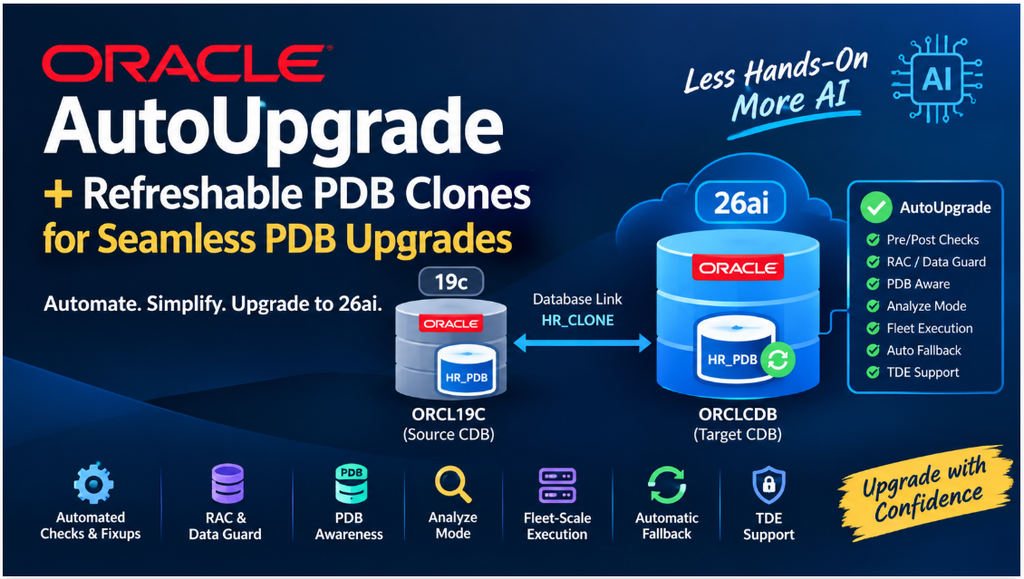
That’s what led me to Oracle AutoUpgrade. It’s a surprisingly powerful utility, and once you dig in, you realize it does much more than “upgrade a database.” Here’s what it brings to the table:
-
Automated pre- and post-upgrade checks and fixups. You no longer chase readiness issues by hand.
-
Support for single-instance, RAC and Data Guard environments.
-
PDB awareness. This includes out-of-place patching and moving PDBs through refreshable clones with minimal downtime.
-
Analyze mode. You see exactly what it will do before you commit to anything.
-
Fleet-scale execution. You can upgrade or patch many databases from a single config file.
-
Automatic fallback. It uses a guaranteed restore point if something doesn’t go as planned.
-
TDE awareness. It handles keystore and wallet requirements for encrypted databases.
Once I saw what AutoUpgrade could do, the next question was obvious: could I combine it with refreshable PDB clones to make PDB upgrades even less hands-on? This blog walks through exactly that. The next question was obvious: could I combine it with a refreshable pluggable clone approach to make PDB upgrades even less hands-on? That’s what this blog walks through.
Overview and Approach
The Setup
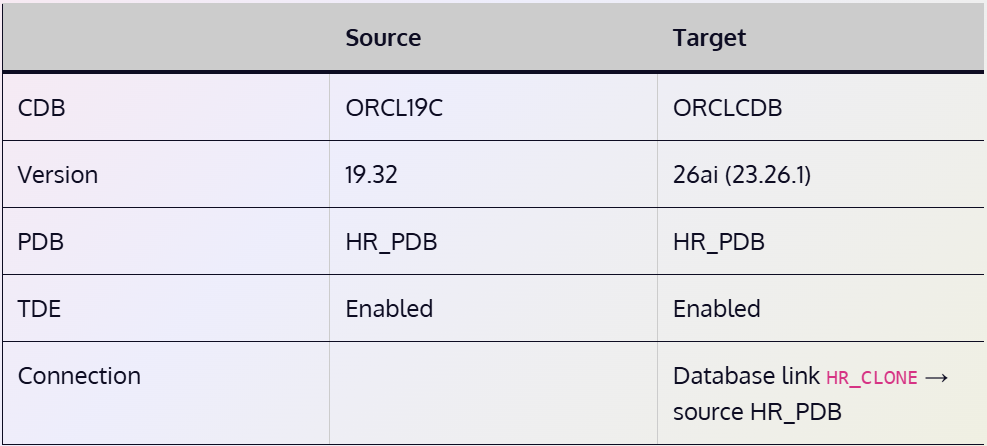
In this example, I’m upgrading one pluggable database, HR_PDB, from a 19c container database into a 26ai CDB. Everything else in the source container stays on 19c for now. Only this PDB moves.
Why Use a Database Link?
The target 26ai CDB connects back to the source through a database link called HR_CLONE, and I like this approach for a few reasons.
Everything moves over the network. The initial copy of the PDB goes across the link, and so does every change after it. There are no backup pieces to copy between servers and no files to stage by hand.
The clone stays in sync. AutoUpgrade builds a refreshable clone of HR_PDB in the target CDB. It keeps applying redo from the source, so the copy stays current while users keep working on 19c.
Downtime stays small. The slow part, copying the datafiles, happens while production is still running. When the window opens, only a final refresh and the upgrade are left to do.
How It Fits Together
-
Deploy, let the clone sync, then cut over when you’re ready.
-
Prepare the target CDB so it knows where to put the new datafiles.
-
Create and test the database link to the source PDB.
-
Build the AutoUpgrade config file.
-
Load the TDE keystore passwords.
-
Run AutoUpgrade in analyze mode.
Step 1: Create the Clone User on the Source (ORCL19C)
Before I can create the link, the source side needs a user to connect as. I create a local user called dblinkuser inside HR_PDB and give it only what the clone needs:
-
CREATE SESSION so it can log in
-
CREATE PLUGGABLE DATABASE, which a remote clone requires
-
SELECT_CATALOG_ROLE so AutoUpgrade can read the dictionary views during its prechecks
SYS.ENC$ holds the TDE encryption key metadata for encrypted tablespaces/PDBs. When cloning a TDE-encrypted PDB over a database link (like your refreshable clone), the link user needs read access to it so the clone can pull that key info and set up encryption on the target – without it, the clone fails.
Step 2 – Prepare the Target CDB (ORCLCDB)
Before AutoUpgrade copies the HR PDB into the 26ai container, the target CDB needs to know where to put the new datafiles. There are two ways to set this up.
Option 1: Enable Oracle Managed Files (OMF). This is my preferred option.
If db_create_file_dest is set on the target CDB, Oracle handles file naming and placement for you:
This is the cleaner approach. With nothing to map by hand, there’s less to go wrong during the upgrade window.
Option 2: Use file_name_convert in the AutoUpgrade config.
If your standards don’t allow OMF, you can map the source paths to the target paths yourself in the config file:
The source path has to match exactly where the HR datafiles live today. You can confirm it with SELECT name FROM v$datafile; inside the source PDB.
Step 3. Target CDB26 – Database Link
Next, create a database link from the target CDB back to the source. AutoUpgrade uses this link to pull the PDB across.
Point the link at the HR PDB service, not the CDB root. This is a common mistake. If the link lands in the root, the clone either fails or copies the wrong container.
The dblinkuser account in the source PDB needs CREATE SESSION and CREATE PLUGGABLE DATABASE for the remote clone to work.
Validate the link.
If this query returns a row, the link works. Keep in mind that v$database always returns the CDB name (ORCL19C), even when you’re connected to a PDB. To confirm the link actually lands in the HR PDB, run this as well:
It should return HR_PDB. If it returns CDB$ROOT, fix the hr_pdb TNS entry so it uses the PDB service name.
Step 4 – Config file (hr_pdb26.cfg)
Get the latest AutoUpgrade.
Always download the latest AutoUpgrade release before you start. Oracle ships fixes and new checks all the time, and the version bundled with the 26ai home is usually out of date. You can download it from MOS Doc ID 2485457.1 or directly from https://download.oracle.com/otn-pub/otn_software/autoupgrade.jar, then check which version you have:
Set up a dedicated working folder.
I give every upgrade its own folder. Logs, the keystore and the config for one upgrade stay together and never mix with another project’s:
The config file:
Step 5 – Load the TDE Passwords into the AutoUpgrade Keystore
Both the source and target CDBs use TDE, so AutoUpgrade needs the keystore passwords for each one. It needs the source password to read the encrypted HR PDB, and the target password to import the encryption keys into the 26ai container. If they’re missing, the job stops partway through and waits for someone to type a password, which you don’t want in the middle of a downtime window.
AutoUpgrade has its own secure keystore for this. You load it once, before the upgrade, with -load_password.
The first time you run it, AutoUpgrade asks you to create a password for its own keystore. This keystore is written to the global.keystore location from the config file. After that, you’re taken to the TDE> prompt:
Sample output:
Step 6 – Analyze
Before making any changes to the database, I always start with analyze mode. It runs every pre-upgrade check against the source database and reports anything that needs fixing, without changing anything. You can run it as many times as you like during business hours.
In this case, the source is the HR pluggable database in the ORCL19C container (19.32), and the target is Oracle AI Database 26ai (23.26.1).
Launching the Analysis
From the staging directory, run AutoUpgrade with the config file and -mode analyze:
Sample output:
Step 7 – Deploy (Creates the Refreshable Clone)
Now execute the deploy; this step creates a PDB in the target environment.
Note: AutoUpgrade creates HR_PDB in ORCLCDB as a refreshable clone. The job then waits for start_time. Leave this console session open.
Sample output:
Check the clone on the target:
Refresh status:
Step 8 – Refresh Cycles
Refresh #1 – Manual
Note: For this testing, I will add a user called HR and add a timestamp to validate.
On the source: add a marker row.
On Target: Force Refresh
Sample output:
Refresh #2 – Manual
On the source:
Refresh #3 – Automatic
On the source:
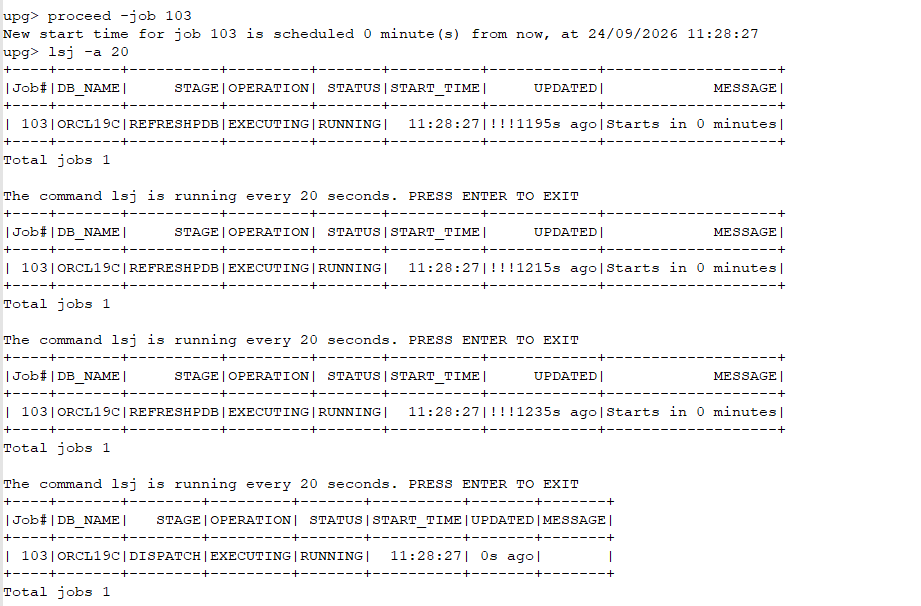
Start the cutover from the AutoUpgrade console:
To log in, run: java -jar autoupgrade_26.5.260807.jar -config hr_pdb26.cfg -mode deploy.
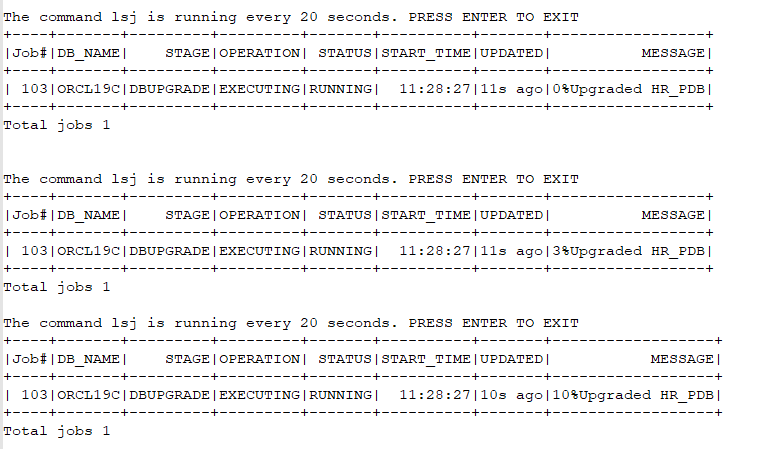
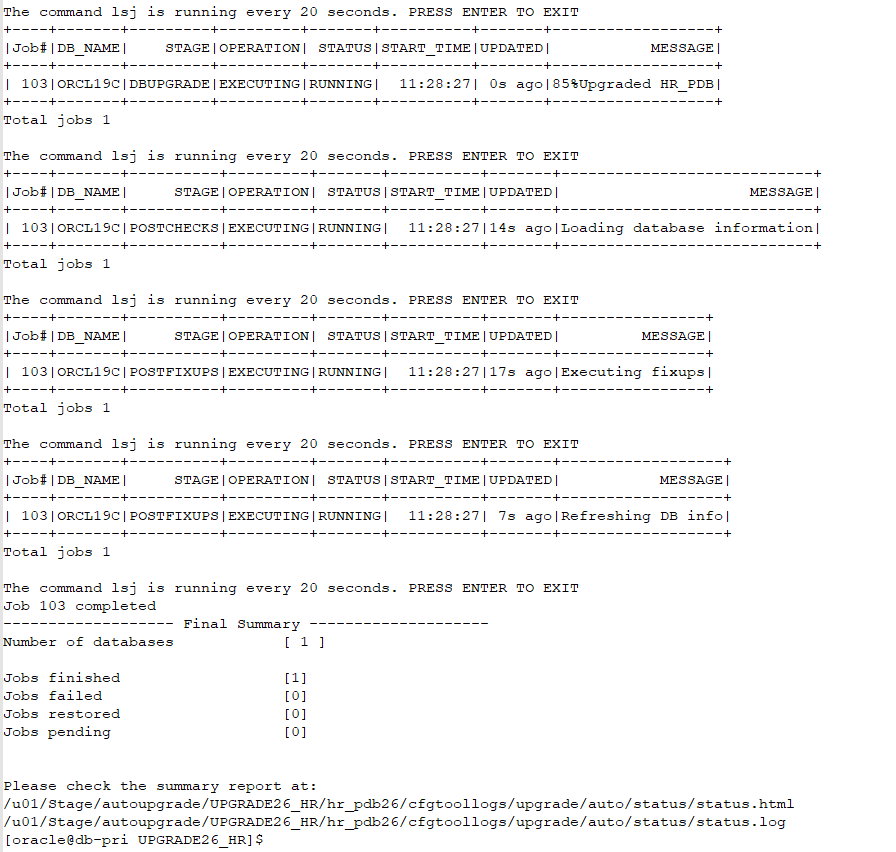
AutoUpgrade then does four things:
-
Runs a final refresh
-
Turns off refresh mode
-
Upgrades HR_PDB to 26ai
-
Runs the post-upgrade fixups
Sample output:
Upgrade Steps:
Step 10 – Post-Upgrade Checks on the Target
Validate that all data moved to the target.
Validate registry.
Conclusion
Upgrades are a normal part of a DBA’s work. At the moment, many customers want to move to 26ai and try what it offers, and the first thing they usually ask is how to get there with as little downtime as possible.
Pairing AutoUpgrade with a refreshable PDB clone answers that question well. The PDB is copied and kept in sync while production is still running. TDE keys are handled through AutoUpgrade’s keystore. The cutover happens when you decide, not when a script decides. By the time the downtime window opens, most of the work is already done.
A lot of what we used to do by hand is now automated by AutoUpgrade: the prechecks, the fixups, the clone, the refresh and the upgrade itself. That leaves more time for planning, testing and validating the application, which is where a DBA’s attention should go.
If you’re planning a move to 26ai, start with a single PDB like this one, run analyze mode early, and let the clone do the heavy lifting.
For more information, check out our Oracle Database Services, or contact us today, and one of our experts will be in touch.