

- About

Getting to know us
- Industries
Industries
McMaster University: Exadata Cloud@Customer Case Study

Eclipsys has helped McMaster University maximize its investment in the Oracle Exadata Cloud@Customer solution. Read the story here
- Careers







Life at DSP-Eclipsys
- Contact Us
Migrating Workloads from Azure to OCI with RackWare
Contents
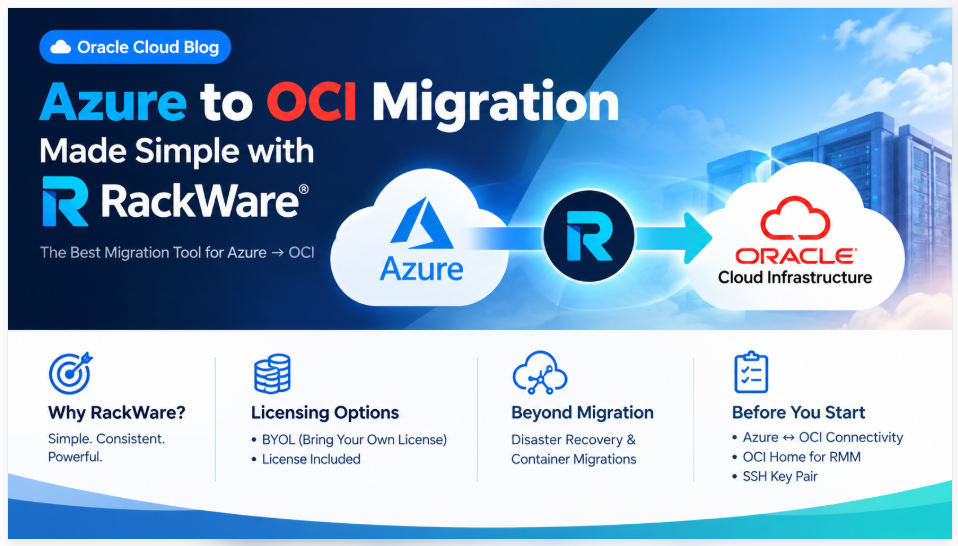
AI is changing every industry, and organizations are using it wherever they can to work more efficiently and grow their bottom line. As a result, cloud strategy matters more than ever: where your workloads run and what it costs to keep them there.
Recently, I worked with a customer running their workloads on Azure who decided to move to Oracle Cloud Infrastructure (OCI) as part of their long-term strategy. Their main drivers were licensing and overall cloud cost.
Why RackWare?
Anyone who has done it knows that moving workloads between hyperscalers is never easy. A few months ago I tested Oracle Cloud Migration Service, which is free, works smoothly, and supports moving workloads from AWS to OCI with very little effort. Azure to OCI was a different story, though. I needed a tool that was consistent, easy to use, and would make the whole process as painless as possible.
As it turned out, I already knew one. I’d used RackWare a while back to migrate on-premises workloads to OCI, and I realized the same tool could handle Azure to OCI.
I’ll say it plainly: RackWare is the best migration tool I’ve used so far. In the AI era, I want tools that take the heavy lifting off my plate so I can spend my time on what matters, like planning and fixing issues during cutover instead of fighting the migration itself.
RackWare isn’t only for one-time migrations. You can also use it for disaster recovery and even for container migrations between hyperscalers.
RackWare Licensing Options
RackWare is available in the OCI Marketplace in a few flavors, with two licensing options:
-
BYOL (Bring Your Own License): what I’m using for this migration.
-
License Included: adds an hourly charge, separate from OCPU.
Before You Start
You’ll need a few things in place first:
-
Connectivity between Azure and OCI. RackWare has to reach your Azure servers from OCI. For this, we set up an IPSec VPN tunnel between the two clouds.
-
A home for the RMM server in OCI. That means a compartment, a VCN, and a subnet for the RackWare Management Module (RMM) server.
-
An SSH key pair. You’ll use it to log in to the RMM server.
Step 1: Find RackWare in the Marketplace
Start in the OCI Console. Open the Marketplace and search for “RackWare”. You’ll get a few listings. For this migration, I went with the RackWare BYOL image.
Once you’ve picked the image, click Launch Instance.
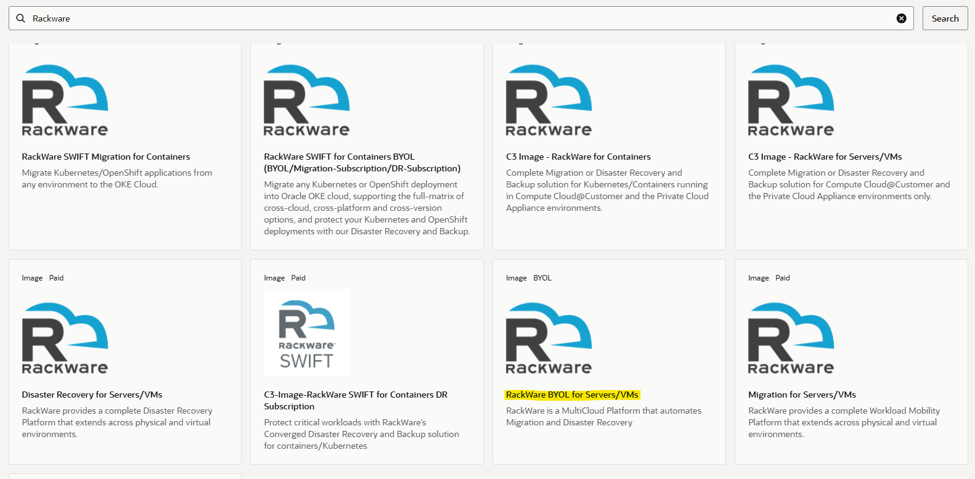 Figure 1: RackWare image in the OCI Marketplace
Once you’ve selected the image, click Launch Instance.
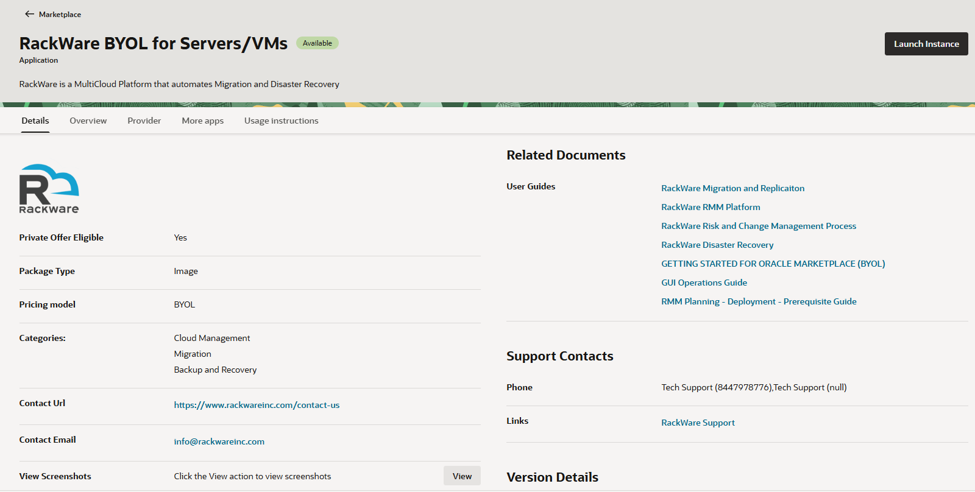 Figure 2: RackWare Launch instance
Step 2: Set Up the RMM Instance
Pick the compartment where you want the RMM server to live.
Then choose the availability domain and capacity type. I went with on-demand capacity for this migration.
For the shape, I’m using CM.Standard.E5.Flex. I kept the OCPU count small to start, and I’ll scale it up once the actual migration begins.
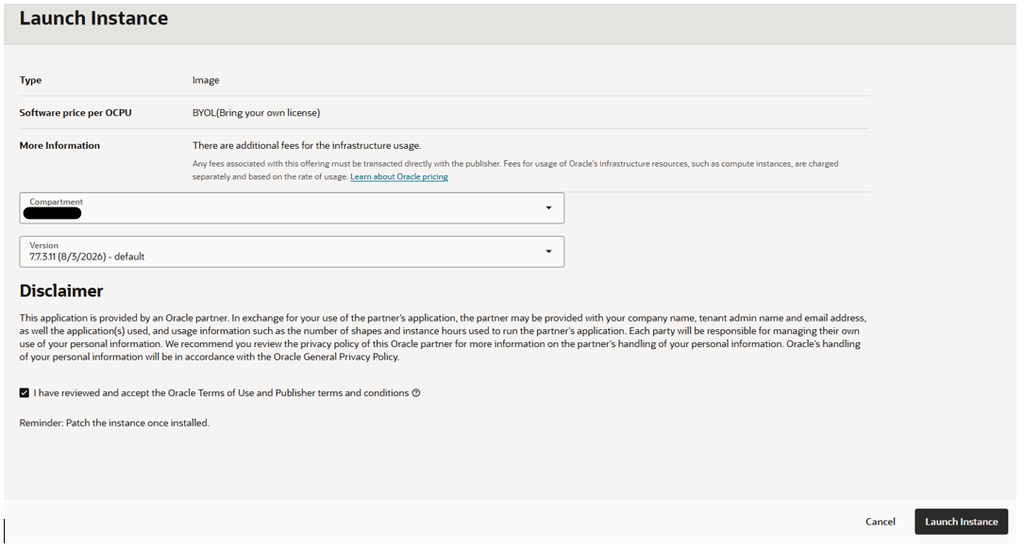 Figure 3: Select AD
Availability domain and capacity: Select the availability domain (AD) where you want to place the RMM server, then choose the capacity type. For this migration, I’m using on-demand capacity.
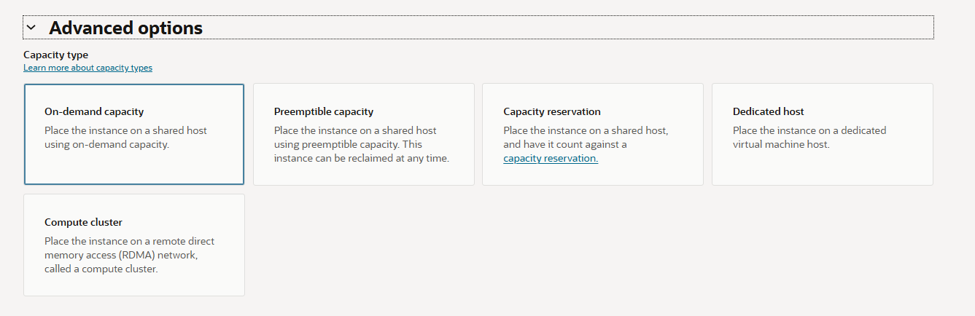 Figure 4: Capacity selection
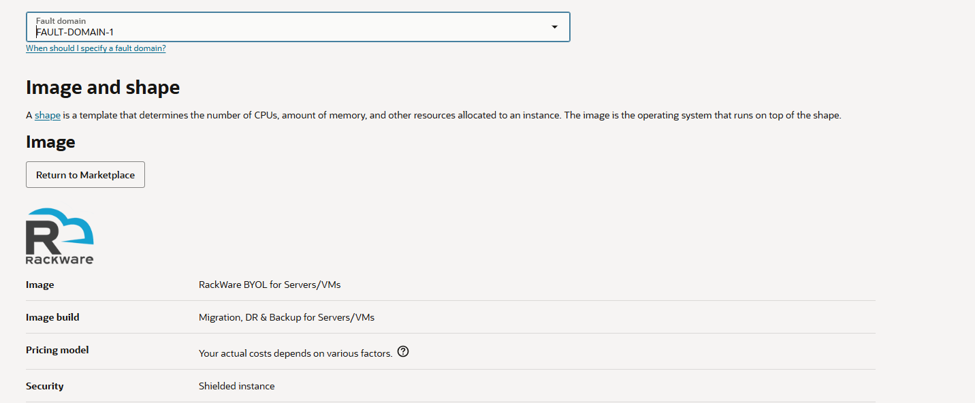 Figure 5: FD selection
Shape: For the RMM instance, I’m using CM.Standard.E5.Flex. I’m starting with a small OCPU count to save cost and will scale up when the actual migration begins.
Tip: With BYOL, RMM licensing works in two steps.
Additionally, you generate a pre-license key from the RMM server, then submit it to RackWare to receive your license key.
Because the license must be activated before migration, there’s no point paying for a large shape beforehand.
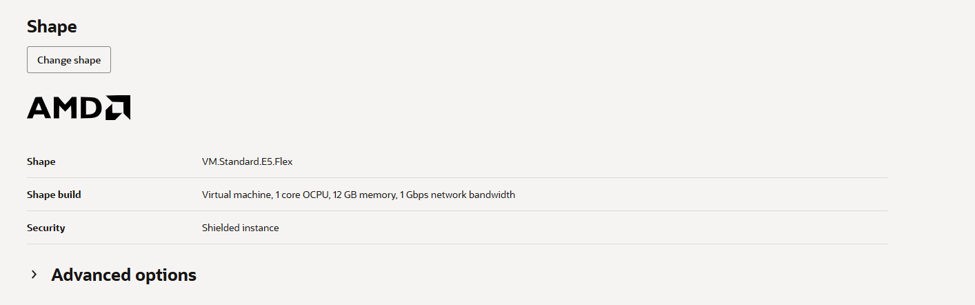 Figure 6: Shape selection
Step 3: Set Up Networking
For this migration, we built an IPSec tunnel between Azure and OCI. Pick the VCN and subnet that can reach Azure through that tunnel, then set up the IP address for the RMM server.
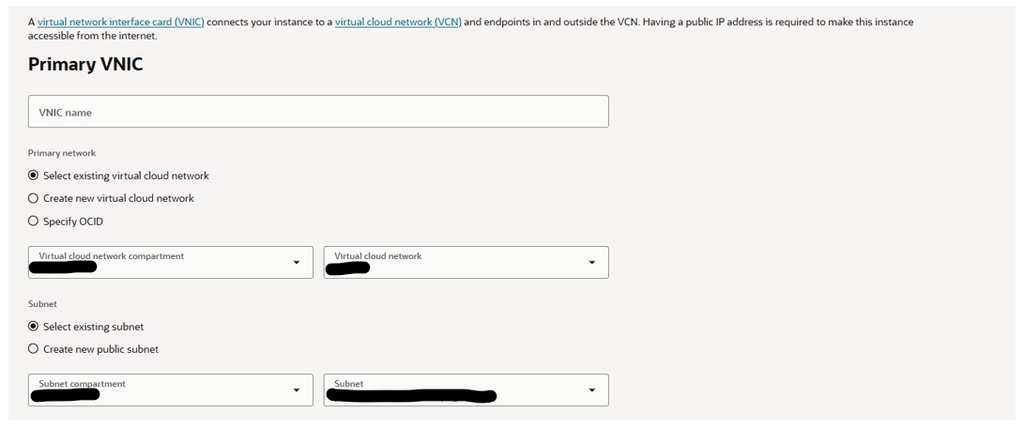 Figure 7: Network configuration
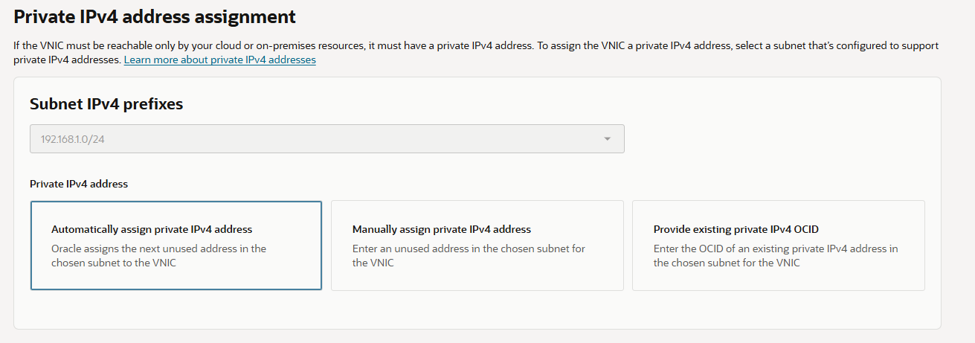 Figure 8: IP address selection
Step 4: Add the SSH Key
Paste or upload your public key. You’ll use it to log in to the RMM server as the opc user.
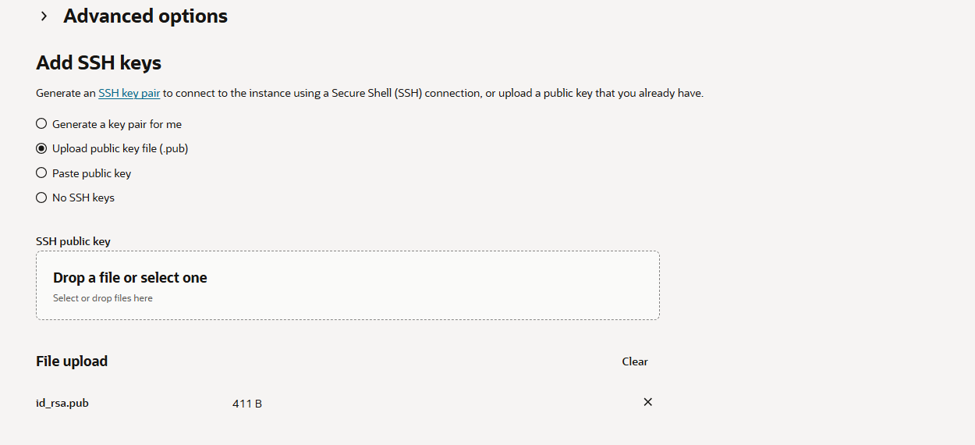 Figure 9: SSH key configuration
Step 5: Storage (Optional)
I recommend attaching a dedicated block volume to the RMM server. I’m doing that as a separate step and will cover it in a follow-up post.
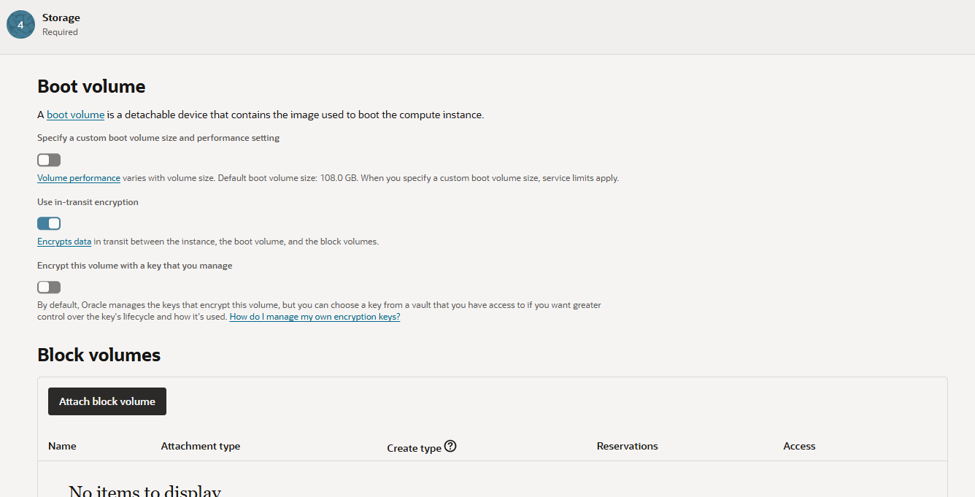 Figure 10: Add block volume
The RMM Dashboard
When the instance is up and you’ve logged in, you’ll land on the main RMM dashboard.
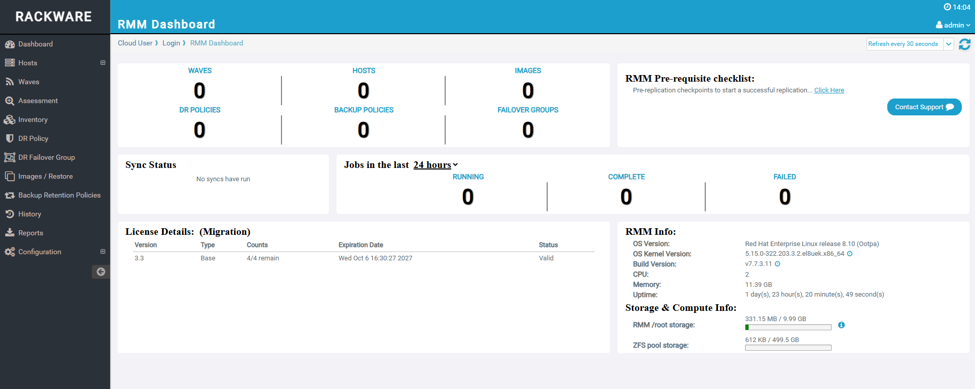 Figure 11 : RackWare RMM dashboard
Conclusion
Moving workloads between hyperscalers is never easy. Oracle Cloud Migrations works well if you’re coming from AWS, but Azure to OCI needs a different approach. For me, the answer was RackWare. I’d already trusted it to move on-premises workloads into OCI, and it did the same job here, consistently and without much fuss.
In this blog, we got the RMM server deployed in OCI and ready to go. Setup takes very little time. Starting with a small shape while you sort out the BYOL license also keeps costs down until the real work begins.
After years of migration projects, I’ve learned that the tool should be the easy part. Your attention belongs on planning, testing, and handling whatever comes up during cutover. RackWare lets me work that way, and that’s why it’s my go-to for moving workloads into OCI.
For more information, check out our OCI Services, or contact us today, and one of our experts will be in touch.