

- About

Getting to know us
- Industries
Industries
McMaster University: Exadata Cloud@Customer Case Study

Eclipsys has helped McMaster University maximize its investment in the Oracle Exadata Cloud@Customer solution. Read the story here
- Careers







Life at DSP-Eclipsys
- Contact Us
Set Up Oracle ASM on an Azure Linux Virtual Machine: Challenges I Encountered and Their Solutions
Contents
Setting up an Oracle ASM-based database on an Azure Linux virtual machine can come with some challenges. While Microsoft provides a comprehensive official guide (Set Up Oracle ASM on an Azure Linux Virtual Machine) covering the core steps, real-world implementations often come with unexpected challenges that aren't addressed in the documentation.
In this blog post, I won’t repeat the steps already covered in the Microsoft article. Instead, I’ll walk you through the specific issues I encountered during the setup, the errors that slowed me down, and—most importantly—the solutions that worked. Whether you're a DBA, a cloud engineer, or someone exploring Oracle on Azure, I hope these insights will help you avoid similar pitfalls and save valuable time.
Here are the key problems I faced:
- Installing Azure CLI on Windows
- Creating an X Server VM (asmXServer) – a Windows-based VM for running graphical tools like asmca and dbca
- Bastion Connection Failure – caused by an outdated version of Python
In the sections that follow, I’ll explain each of these issues in detail and how I successfully resolved them.
1. Installing Azure CLI on Windows
To install the Azure Command-Line Interface (CLI) on your Windows 11 machine, follow these steps:
1.1. Download the Installer
Visit the official Azure CLI installation page for Windows:
👉 Install Azure CLI on Windows

1.2. Click on the "Download the MSI Installer" link to begin the download.
1.3. Run the Installer
- Once the download completes, run the installer and follow the on-screen instructions to complete the setup.
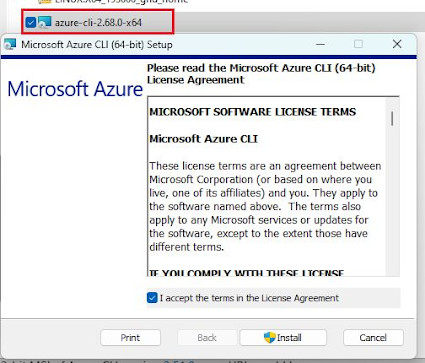
1.4. NOW you have 2 options
- Using the Windows PowerShell
2. Using mobaXterm to run commands in the shell (Linux bash shell)
1.4.1. Using the Windows PowerShell
To log in to the Azure user the following command in PowerShell
az login
Select your Microsoft account and click Continue.

Enter your Azure account, and click Next
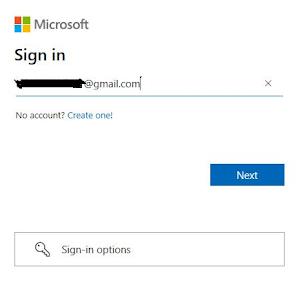
Enter the MFA (Multi Factor Authentication) on your mobile phone.

Click Next.
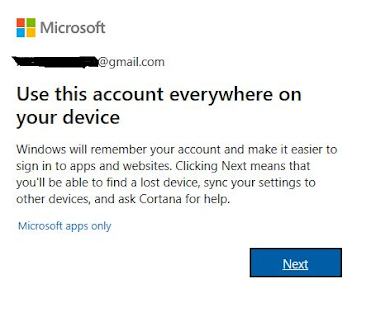
I encountered this problem, "No subscription found for ..."

Solution: Set the Tenant ID.
To find your Tenant ID, go to the Azure Portal → navigate to Microsoft Entra ID → under Overview, you’ll see the Tenant ID listed.

Then run the following commands in the Windows Powershellaz login-- tenant <Your Tenant ID> az account show


1.4.2. Using mobaXterm to run commands in the shell (Linux bash shell)
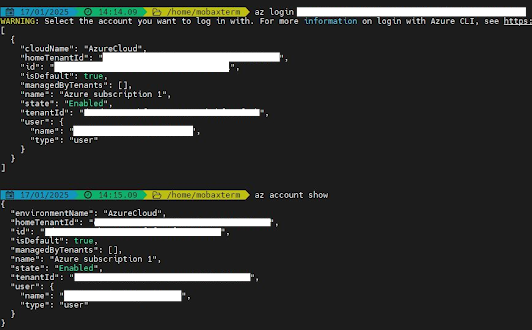
Here, I used MobaXterm and opened the Shell.

Then run the following commands in the Windows PowerShell login --tenant az account show.

2. Creating an X Server VM (asmXServer)
At first, I tried to execute the following command and I received this error: “Querying the image of ‘Windows-10:win10-22h2-pro-g2:19045.2604.230207’ failed for error (NotFound) Artifact: VMImage was not found.”
az vm create --resource-group ASMAmirLab --name asmXServer --image MicrosoftWindowsDesktop:Windows-10:win10-22h2-pro-g2:19045.2604.230207 --size Standard_DS1_v2 --vnet-name asmVnet --subnet asmSubnet1 --public-ip-sku Standard --nsg "" --data-disk-delete-option Delete --os-disk-delete-option Delete --nic-delete-option Delete --admin-username azureuser --admin-password Amir123

I executed this command to get available Windows 10 images.

$ az vm image list --offer Windows-10 --all -o table.

The output showed that the specific version of Windows mentioned in the Microsoft documentation was no longer available.

I changed the URN for the image to “Windows-10:win10-22h2-pro-g2:19045.5371.250112” and executed the command.
az vm create --resource-group ASMAmirLab --name asmXServer --image MicrosoftWindowsDesktop:Windows-10:windows-10:win10-22h2-pro-g2:19045.5371.250112 --size Standard_DS1_v2 --vnet-name asmVnet --subnet asmSubnet1 --public-ip-sku Standard --nsg "" --data-disk-delete-option Delete --os-disk-delete-option Delete --nic-delete-option Delete --admin-username azureuser --admin-password Amir123
3. Bastion Connection Failure
During the “Download and Prepare Oracle Grid Infrastructure” step, I encountered the following error while trying to run the command: ERROR: an error occurred. Pip failed with status code 3221225477.
asmVMid=$(az vm show --resource-group ASMAmirLab --name asmVM --query 'id' --output tsv)
az network bastion tunnel --name asmBastion --resource-group ASMAmirLab --target-resource-id $asmVMid --resource-port 22 --port 57500
When I executed the command with-- debug, I discovered that the root cause of the problem was an outdated version of Python.
az extension add --name bastion --debug.
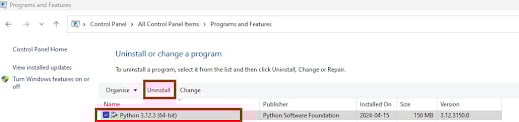
Therefore, I uninstalled the old Python version .
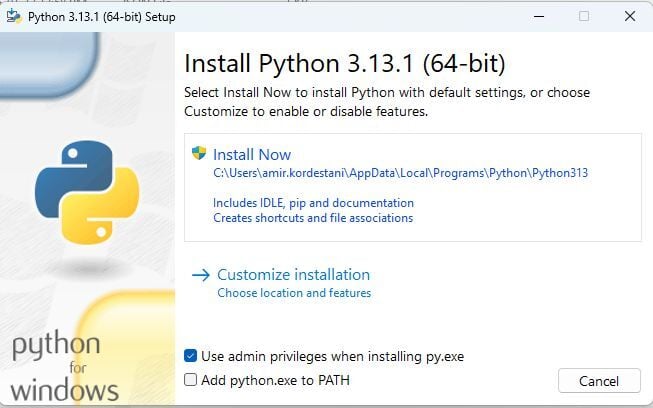
Then I installed Python 3.13.
I removed Azure CLI.

I rebooted Windows and reinstalled the Azure CLI. Now it is working, the problem was my Python version.

Get in touch with DSP-Eclipsys today to explore better solutions for your business.