

- About

Getting to know us
- Industries
Industries
McMaster University: Exadata Cloud@Customer Case Study

Eclipsys has helped McMaster University maximize its investment in the Oracle Exadata Cloud@Customer solution. Read the story here
- Careers







Life at DSP-Eclipsys
- Contact Us
Connect to Oracle Database with VS Code using SQL Developer Extension and SQLcl
Contents
Introduction:
In this blog post, I will show you how to install Oracle SQL Developer Extension for VS Code and SQLcl. SQLcl is included with the Oracle SQL Developer Extension for VS Code. The extension provides integrated command-line functionality through SQLcl, allowing users to spawn CLI sessions to their database directly within VS Code.
Pre-Requisite:
Installed VS Code (Visual Studio Code), Access to Oracle Database from cloud or on-prem
Steps:
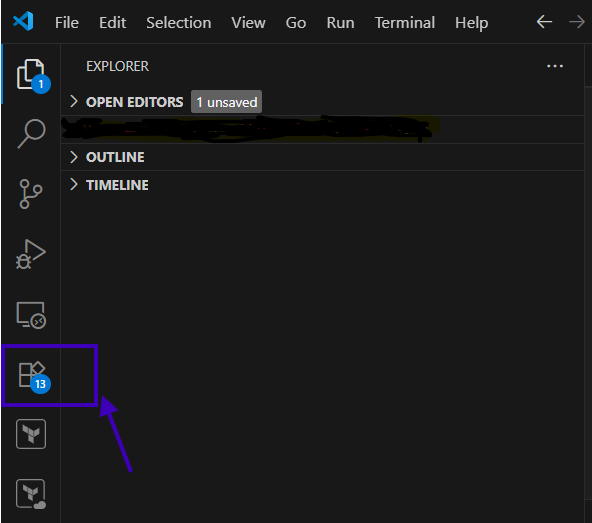
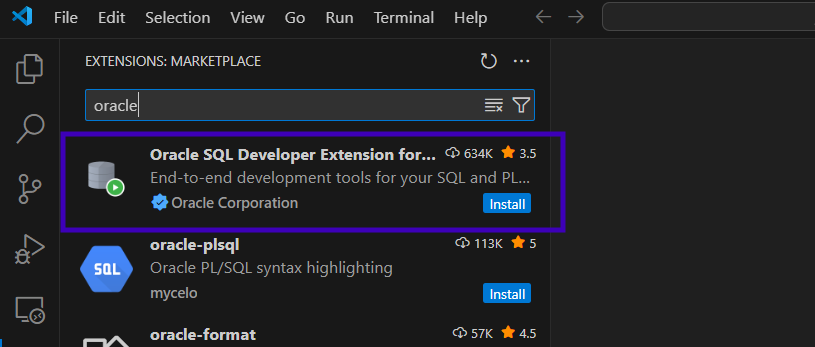
In VS Code, navigate to Extensions, search for Oracle, and “Oracle SQL Developer Extension for VSCode” will appear at the top of the results. Click Install
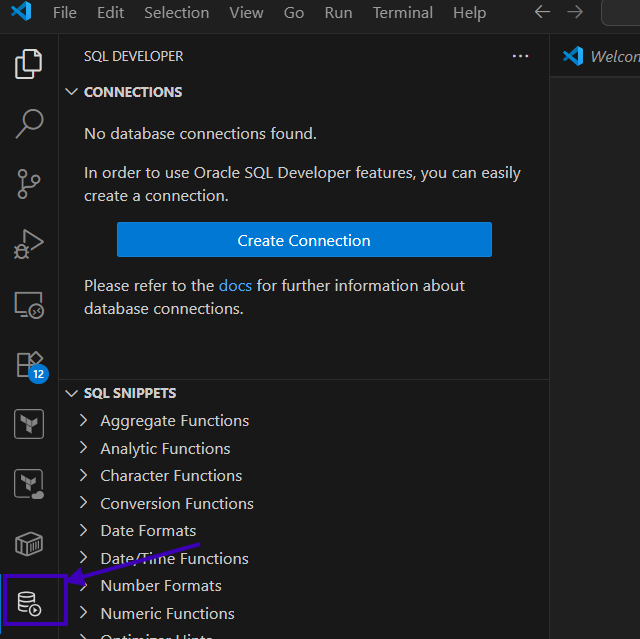
Once installed, navigate to the SQL Developer Extension for VS Code in the Activity Bar.
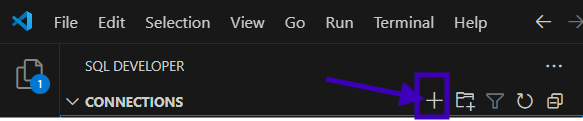
Click on the plus(+) sign to create a database connection.
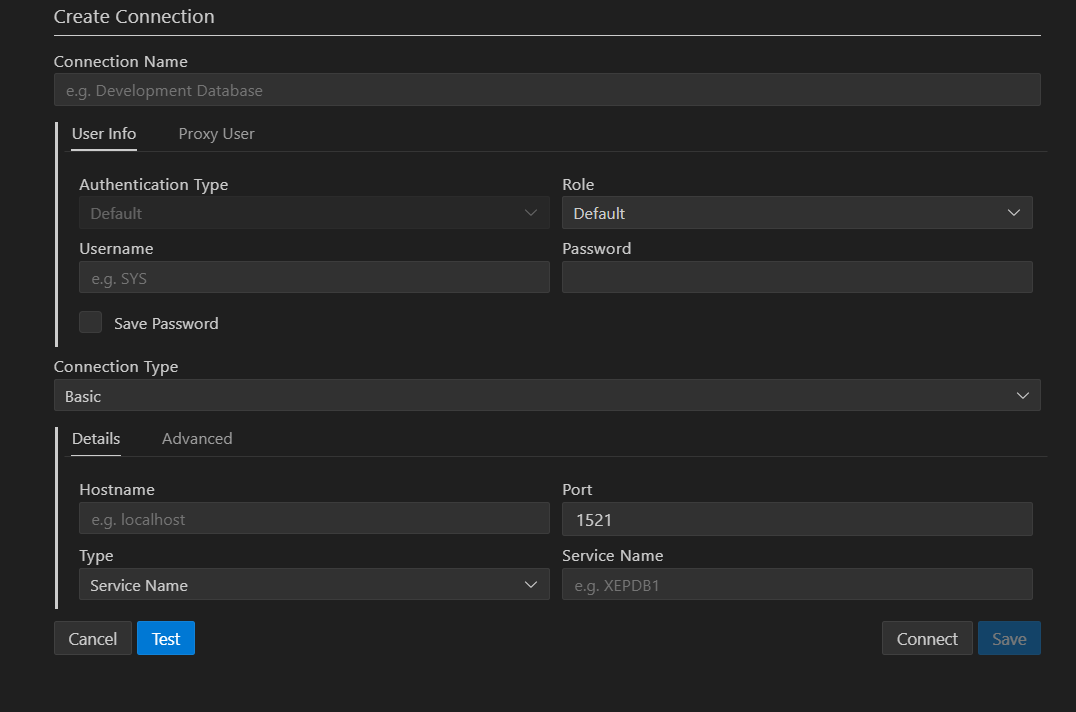
Enter your Oracle database connection details and test it, and save it.
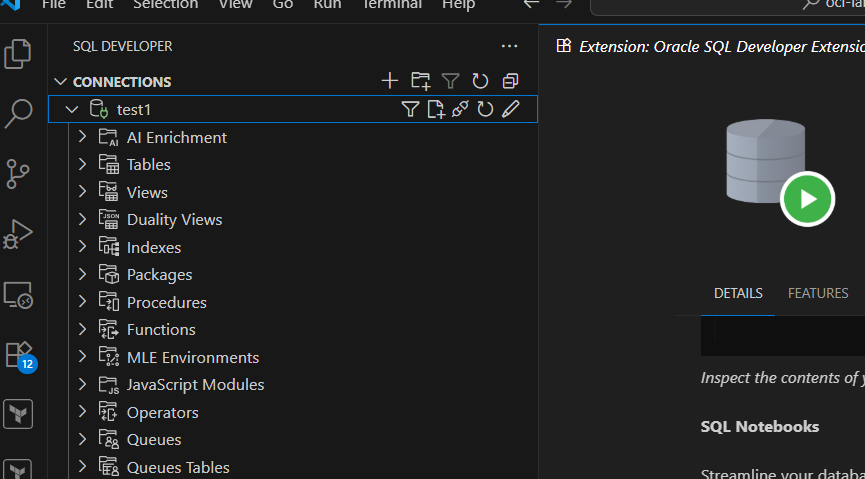
Your new connection will appear in the Primary Side Bar. Click the connection name. In my case, it’s test1. Clicking the connection name establishes a connection to the target database and reveals various database objects.
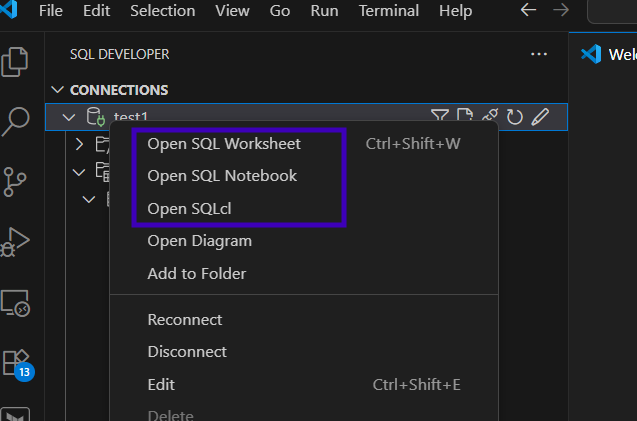
Right click on the connection name, and you can see it installed SQL Worksheet, SQL Notebook, and SQLcl.
In my next blog post, I will show you how to use these tools to run queries.